The quickest way to add a store locator to WooCommerce is the free StoreRocket plugin, which adds the locator as a block or with the [wp-storerocket] shortcode, or one embed code pasted into a Custom HTML block. Your locations live in StoreRocket, not in your WooCommerce database.
We make StoreRocket, so weigh our view with that in mind. This guide covers WordPress plugins, embedded solutions and custom builds, and you can create your locator with a free trial, no credit card needed, to try the embedded route.
Related: What is a store locator? | Best store locator for WordPress
The short answer
A free map or app is enough when
- You have a few shops that rarely change and are comfortable keeping them inside WordPress.
- A free plugin such as WP Store Locator covers the search and map you need.
- You are happy to maintain the plugin and its updates; on OpenStreetMap it needs no Google Maps key.
- Visitors only need to see where your shops are, not search a long list.
Use StoreRocket when
- You sell online and from shops, and want a store finder that sits next to your pickup and returns pages.
- Your list is long or changes often, and your team should update it from a dashboard or a spreadsheet import, not inside WordPress.
- You want the free StoreRocket plugin or one embed code, with no store locator code in your theme.
- You want StoreRocket to maintain the hosted locator and deliver updates through the embed already on your site.
Only a few locations and no budget? You may not need a store locator at all. A free embedded map with a pin for each location is fine when the list is short, rarely changes and visitors only need to see where you are. Our guide to free store locator options compares them.
Why WooCommerce Stores Need a Store Locator
WooCommerce merchants with physical stores get more from their site when online and offline connect. A store locator helps customers find your stores, supports buy-online-pickup-in-store, and sends online visitors to the shop nearest them. With a WooCommerce site you can:
- Link "Find in store" from product pages
- Enable store pickup at checkout, using WooCommerce's own Local Pickup
- Drive online visitors to stores
- Capture leads when a search finds no store nearby (depends on the plan)
Related: How to embed Google Maps in WordPress
Your Options for WooCommerce Store Locators
Option 1: WordPress Plugins
How it works: Install a store locator plugin from the WordPress repository.
Popular options:
- WP Store Locator (free)
- Store Locator Plus (freemium)
- Super Store Finder (premium)
Pros:
- Native WordPress integration
- Many free options
- Familiar admin experience
Option 2: Embedded Solution (Recommended)
How it works: Use a dedicated store locator platform and show it with the free StoreRocket plugin (block or shortcode) or an HTML block.
Pros:
- Full-featured store locator
- Analytics, including a map of where people searched (depends on the plan)
- Lead capture when a search finds nothing nearby (depends on the plan)
- Google Sheets sync (depends on the plan)
- Your team edits locations in a dashboard built for them, outside WordPress
Cons:
- Monthly fee
- After the free trial you connect your own Google Maps or Mapbox key and pay that provider directly, as you would with most plugins
Best choice: StoreRocket
Option 3: Custom Development
How it works: Build a custom store locator using WordPress/WooCommerce APIs.
Pros:
- Complete customization
- Deep WooCommerce integration
Cons:
- Costly, because it needs a developer
- Ongoing maintenance
- Security responsibility is yours
Our guide to building a store locator with AI lists what a custom build needs.
Adding StoreRocket to WooCommerce
Step 1: Create Your StoreRocket Account
- Visit storerocket.io/get-started
- Sign up with your email
- Access your dashboard (no credit card needed)
Step 2: Add Your Locations
Manual entry:
- Locations > Add a location
- Enter the name and type the address, picking it from the suggestions
- Add phone, email and hours
- Save
CSV import:
- Prepare a spreadsheet (CSV, TSV, TXT, XLS or XLSX)
- Locations > Import locations
- Upload the file and match its columns
- Review what will change, choose to add the rows or replace the current list, then publish
Google Sheets sync (depends on the plan, see pricing):
- Open Locations > Google Sheets Sync in StoreRocket and create a new linked spreadsheet
- StoreRocket exports your current locations and emails you the spreadsheet link
- Add or edit locations in the linked spreadsheet using its template columns
- Enable automatic daily sync, or click Sync from Sheets after editing
To bring in an existing spreadsheet, import its CSV or Excel export first. Continuous sync uses the spreadsheet created by StoreRocket. Follow the Google Sheets setup guide.
Step 3: Customize
- Open Widget Studio and pick a locator style
- Set your brand colour to match your WooCommerce theme
- Configure map settings
- Set search defaults
Step 4: Create Filters
Filter groups for WooCommerce:
- Store type (Retail, Outlet, Warehouse)
- Services (BOPIS, Returns, Repairs)
- Products carried
Step 5: Get Embed Code
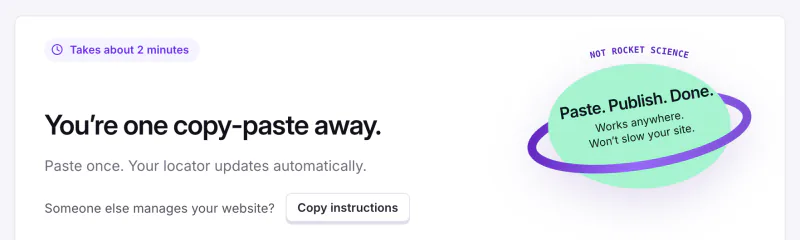
Go to the Install page and copy the embed code shown for your account. It is a short block with your account ID already in place, so paste it exactly as copied rather than retyping it.
Step 6: Add to WooCommerce/WordPress
Method A: Gutenberg Custom HTML block (no plugin)
- Create or edit a page in WordPress
- Add a Custom HTML block
- Paste the embed code
- Publish
Method B: Classic Editor
- Edit a page
- Switch to Text view (not Visual)
- Paste the embed code
- Publish
Method C: Free StoreRocket plugin (block or shortcode)
- Go to Plugins > Add New and search for "StoreRocket"
- Install and activate the free StoreRocket Store Locator plugin
- In the plugin's settings, paste the install code from your StoreRocket Install page.
- On your page, add the StoreRocket Store Locator block, or type
[wp-storerocket] - Publish
Step 7: Add to Navigation
- Open your site's menu: Appearance > Menus in a classic theme, or the Navigation block in the Site Editor for a block theme
- Add your store locator page
- Position it in the navigation
- Save
WooCommerce-Specific Integrations
Buy Online, Pick Up In-Store (BOPIS)
WooCommerce's Local Pickup handles the order; the locator helps shoppers choose the shop. The two stay separate, so set them up side by side:
- Set up Local Pickup in WooCommerce with your pickup shops
- In StoreRocket, add a "Pickup available" filter to those locations
- Link to the locator, opened already filtered on pickup shops, from your cart or shipping page
Product Page Integration
Add "Find in Store" to product pages:
 1// Add to your child theme's functions.php or a code snippets plugin.
 2// Change /store-locator/ to the address of your locator page.
 3add_action('woocommerce_single_product_summary', function() {
 4    echo '<a href="/store-locator/">Find this in a store near you →</a>';
 5}, 35);
Stock by Store
A locator shows where your shops are, not what is on their shelves. Keep stock and pickup eligibility inside WooCommerce, and use locator filters only for categories your location data can keep accurate, such as services or store type.
Troubleshooting WooCommerce
Widget Not Appearing
Check:
- Page is published
- Embed code is complete
- No JavaScript errors in console
- Theme doesn't block external scripts
- A caching or minify plugin is not serving an old page or reworking the script: clear the cache, then turn its JavaScript minify, combine or delay options off one at a time
Conflicts with Other Plugins
If another plugin is interfering, find it by elimination:
- Temporarily disable other plugins
- Test store locator
- Re-enable plugins one by one
- Identify the conflict
Mobile Issues
Check:
- Theme is responsive
- Container width is appropriate
- The page is served over HTTPS, which "use my location" needs
After install, you change locations in the StoreRocket dashboard and the locator on your page updates itself. StoreRocket maintains the hosted locator and delivers updates through the embed already on your site.
Frequently Asked Questions
Is a plugin or embedded solution better for WooCommerce?
It depends on the size of your list and who updates it. A free plugin such as WP Store Locator keeps everything inside WordPress and suits a short list you are happy to maintain there. A hosted locator such as StoreRocket keeps your locations and the locator outside WordPress: the free StoreRocket plugin or a Custom HTML block only shows it, and your team edits locations in the StoreRocket dashboard. Analytics and lead capture depend on the plan (see pricing). After the free trial, you connect your own Google Maps or Mapbox key once in the dashboard.
Can I show WooCommerce inventory by location?
Keep inventory in WooCommerce. Use StoreRocket to show where your stores are and which services each offers, with filters for categories your location data can keep accurate.
Will this slow down my WooCommerce store?
Your locations are stored in StoreRocket, not in your WooCommerce database, and the embed code loads its script without blocking the page. Test the published page with your theme and plugins.
Does it work with my WooCommerce theme?
The embed works wherever your theme or editor accepts a Custom HTML block or a shortcode. Preview the published page to check how it fits your theme.
Get Your WooCommerce Store Locator Live
Connect your WooCommerce store to physical locations. Help shoppers choose a pickup shop, send visitors to your shops and, on plans with analytics, see where people searched.
Free trial, no credit card required.
Need help with your WooCommerce store locator? Contact us.