
The quickest way to add a store locator to Squarespace is one embed code in a Code block: create your locations in StoreRocket, copy the code from the Install page, paste it into a Code block and publish. You need a Squarespace plan that runs JavaScript in Code blocks (see the FAQ).
We make StoreRocket, so weigh our view with that in mind. This guide covers the full setup, Squarespace-specific fixes and how to test it, and you can create your locator with a free trial, no credit card needed.
Related: What is a store locator? | Store locator examples
The short answer
A free map or app is enough when
- You have a few locations that rarely change and visitors only need to see where you are.
- A static contact page or a Google Map with a pin for each location already does the job.
- You are happy to edit the page by hand whenever an address or opening time changes.
- Nobody needs search by address, filters, analytics or leads.
Use StoreRocket when
- Visitors should search by address or postcode and see the nearest locations with distance, hours and directions in Google Maps.
- Your list is long or changes often, and your team should update it from a dashboard or a spreadsheet import instead of editing Squarespace.
- You want a locator that matches your brand colors and sits in a Code block without a developer.
- You want StoreRocket to maintain the hosted locator and deliver updates through the embed already on your site.
Only a few locations and no budget? You may not need a store locator at all. A free embedded map with a pin for each location is fine when the list is short, rarely changes and visitors only need to see where you are. Our guide to free store locator options compares them.
Your Options for Squarespace
Option 1: Static Contact Page
What it is: A page listing addresses manually.
Pros:
- No extra tools needed
- Simple to create
Option 2: Embedded Google Maps
What it is: A Google Maps embed showing your locations.
Pros:
- Free
- Shows a map
Option 3: Dedicated Store Locator (Recommended)
What it is: A professional store locator platform embedded on your site.
Pros:
- Full search functionality
- Analytics, lead capture and Google Sheets sync (depending on the plan)
- Custom branding
- Mobile responsive
Cons:
- Monthly cost
Our pick: StoreRocket, for a list that is long or changes often.
Adding StoreRocket to Squarespace
Here is the complete setup:
Step 1: Create Your StoreRocket Account
- Go to storerocket.io/get-started
- Enter your email and create a password
- Access your dashboard immediately
- Start with a free trial, no credit card needed
Step 2: Add Your Locations
Option A: Manual Entry
Best for fewer than 20 locations:
- Click Locations > Add Location
- Enter location name
- Enter full address (auto-geocodes as you type)
- Add contact details:
- Phone number
- Email address
- Website (if location-specific)
- Set business hours
- Click Save
Repeat for each location.
Option B: CSV Import
Best for 20+ locations:
- Prepare a spreadsheet with columns:
- Name
- Address
- City
- State
- Zip
- Phone
- Hours
- Go to Locations > Import
- Upload your CSV file
- Map columns to StoreRocket fields
- Review what will change, then publish
Option C: Google Sheets Sync
Best for ongoing management:
- Open Google Sheets Sync in StoreRocket and create a new linked spreadsheet
- StoreRocket exports your current locations and emails you the spreadsheet link
- Add or edit locations in the linked spreadsheet using its template columns
- Enable automatic daily sync, or click Sync from Sheets after editing
To bring in an existing spreadsheet, import its CSV or Excel export first. Continuous sync uses the spreadsheet created by StoreRocket. Follow the Google Sheets setup guide.
Step 3: Customize Your Widget
- Open Widget Studio
- Choose a locator style (see store locator examples for inspiration)
- Configure settings:
- Map provider: Google Maps or Mapbox
- Default search radius
- Distance units (miles/km)
- Language
- Set your brand colors
- Preview and adjust
Step 4: Create Filters (Optional)
Help customers find the right location:
- Go to Filters
- Click Add Filter Group
- Create groups like:
- "Store Type" → Flagship, Outlet, Partner
- "Services" → Repairs, Consultations, Pickup
- "Products" → Full Line, Accessories
- Assign filters to relevant locations
Step 5: Enable Lead Capture (Optional, depends on the plan)
When a search finds no location nearby, the locator can ask the visitor for their details. Lead capture depends on the plan (see StoreRocket's current plans):
- Open the lead form settings on the Leads page
- Toggle on lead capture
- Configure form fields
- Set up email notifications
Step 6: Get Your Embed Code
- Open the Install page in your StoreRocket dashboard
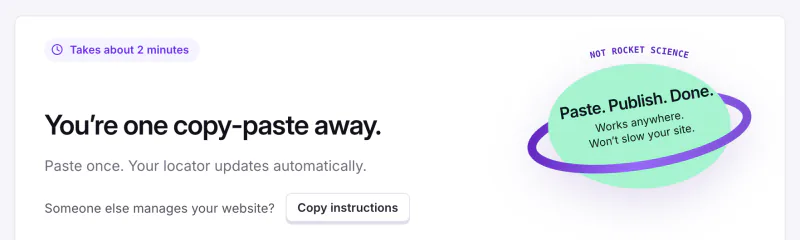
- Copy the embed code shown on your StoreRocket Install page. It already carries your account ID, so paste it exactly as copied.
Step 7: Add to Squarespace
Method 1: Code Block (Most Common)
- Log into your Squarespace dashboard
- Navigate to the page where you want the store locator
- Click Edit on the page
- Click the + button to add a new block
- Select Code from the options
- Paste your StoreRocket embed code
- Click Apply
- Click Save on the page
Method 2: Header/Footer Injection (Advanced)
For site-wide availability:
- Go to Settings > Advanced > Code Injection
- Paste the script in the Footer section
- Add the container div to individual pages via Code blocks
Step 8: Adjust Block Settings
After adding the Code block:
- Click on the block settings
- Set the block to full width if desired
- Adjust spacing/padding as needed
- Preview on desktop and mobile
Step 9: Test Everything
Before publishing:
- ✅ Search by zip code works
- ✅ Search by city works
- ✅ GPS location works
- ✅ Results display correctly
- ✅ Directions open Google Maps
- ✅ Phone numbers in the location details are tappable on a phone
- ✅ Mobile experience is good
- ✅ Filters work (if configured)
Squarespace-Specific Considerations
Ajax-Loading Pages Issue
Some Squarespace templates use Ajax loading, which can prevent embeds from loading when navigating between pages.
Symptoms:
- Store locator appears when directly visiting the page
- Store locator doesn't appear when clicking from navigation
Solutions:
Solution 1: Disable Ajax Loading
- Go to Design > Site Styles
- Find Ajax Loading setting
- Disable it
Note: This may slightly impact page transitions.
Solution 2: Link as External
In navigation settings, link to the store locator page as an external link (full URL) rather than internal page link.
Squarespace Template Compatibility
Because the locator is an embed, it does not depend on a template. Version 7.1 sites and 7.0 templates both accept a Code block.
For best results, use a Code block on a full-width page section.
Mobile Responsiveness
Squarespace handles mobile differently. Ensure:
- The Code block is set to display on mobile
- Test on actual mobile devices
- Verify GPS functionality works
- Check that the map is usable on small screens
Advanced Squarespace Integration
Matching Your Squarespace Design
You can match the locator to your Squarespace template:
- Note your template's colors (find in Design > Site Styles)
- Set StoreRocket's primary color to match
- Choose a theme that complements your template style
- Adjust fonts if needed via custom CSS
Integrating with Squarespace Commerce
If you sell online and have physical stores:
- Link from product pages: "Find in store"
Squarespace Member Areas
For members-only store locators:
- Create the store locator page
- Add it to a members-only section
- Restrict access as needed
Analytics Tracking
StoreRocket provides its own analytics, but you can also:
- Connect to Google Analytics via Squarespace
- Use UTM parameters for campaign tracking
SEO for Squarespace Store Locators
Page-Level SEO
Configure your store locator page:
- Go to page settings
- Set SEO title: "Find a Store Near You | [Brand Name]"
- Set meta description: "Discover [Brand Name] locations near you. Search by zip code to find stores, hours, and directions."
- Set URL slug:
/store-locatoror/locations
Local SEO Benefits
For comprehensive local SEO strategies, see our Store Locator SEO Guide.
If you publish individual location pages, use URLs like:
 1yourdomain.com/stores/new-york-downtown
 2yourdomain.com/stores/chicago-loop
 3yourdomain.com/stores/los-angeles-westside
Each page should have unique content and structured data so it can rank for "[brand] + [city]" searches.
Troubleshooting Squarespace Issues
Store Locator Not Appearing
Check:
- Code block is published (not in draft)
- Embed code is complete (no missing parts)
- Browser console for JavaScript errors
- Ajax loading (see above)
Fix: Try saving the page again or clearing browser cache.
Map Not Loading
Check:
- Your Squarespace site is on HTTPS
- No ad blockers interfering
- Browser console for errors
Store Locator Looks Wrong
Check:
- Code block width settings
- Page section width
- Template margin/padding settings
Fix: Set Code block to full width in block settings.
GPS Not Working
Check:
- Site uses HTTPS (required)
- User granted location permission
- Browser supports geolocation
Mobile Display Issues
Check:
- Code block displays on mobile (block settings)
- Page section is mobile-friendly
- Test on actual devices, not just browser resize
Squarespace Store Locator Best Practices
Placement
- Create a dedicated "Locations" or "Find a Store" page
- Add to main navigation
- Include in footer links
- Link from relevant content pages
Design Consistency
- Match StoreRocket colors to your Squarespace template
- Use the same fonts/styling where possible
- Ensure the widget feels integrated, not bolted-on
Content Strategy
- Write a brief intro above the store locator
- Include relevant keywords naturally
- Add context for visitors
Mobile Priority
- Test on mobile first
- Ensure tap targets are large enough
- Check that the phone number in the location details opens the dialer
- Check GPS functionality
After install, you change locations in the StoreRocket dashboard and the locator on your page updates itself. StoreRocket maintains the hosted locator and delivers updates through the embed already on your site.
Frequently Asked Questions
Which Squarespace plan do I need?
Any Squarespace plan that runs JavaScript in Code blocks works: Core, Plus or Advanced, or the older Business and Commerce plans. The Basic plan and the older Personal plan accept only HTML and CSS in a Code block, so the locator's script needs one of the plans above.
Will this slow down my Squarespace site?
Test the published locator page with your usual performance tools after embedding it.
Can I match the store locator to my Squarespace template?
Yes. StoreRocket lets you choose a theme, set your brand colors and change the wording, so the locator can follow your template's look.
How many locations can I have?
Plans are sized by the number of locations; see current plans.
Does it work with Squarespace 7.1?
Yes. The locator is an embed in a Code block, so it works on 7.1 and 7.0 templates that let you add one on a plan that runs JavaScript.
Can I capture leads from my store locator?
Yes, depending on the plan. When a search finds no location nearby, the locator can ask the visitor for their details, the lead lands in your dashboard and your team gets an email. See pricing.
Get Your Squarespace Store Locator Live
Help visitors find your physical locations with a locator that matches your brand.
StoreRocket for Squarespace includes:
- ✅ Easy Code block installation
- ✅ Google Sheets sync (depends on the plan)
- ✅ Analytics with a map of where people searched (depends on the plan)
- ✅ Lead capture forms (depends on the plan)
- ✅ Brand colors, fonts and wording
- ✅ A phone layout
No credit card required.
Need help with your Squarespace store locator? Contact our team.