
The quickest way to add a store locator to Wix is one embed code: build your locator in StoreRocket, copy the code from the Install page, and paste it into an Embed HTML element on the page. Wix shows that element inside its own frame, so you finish by testing the published page.
We make StoreRocket, so weigh our view with that in mind. This guide walks through every step, and you can create your locator with a free trial, no credit card needed.
Related: What is a store locator? | Best store locator software 2026
The short answer
A free map or app is enough when
- You have a few locations that rarely change and visitors only need to see where you are.
- A Wix app or a Google My Maps embed already shows what you need.
- You are happy to edit the page by hand whenever an address or opening time changes.
- Nobody needs search by address, filters, analytics or leads.
Use StoreRocket when
- Visitors should search by address or postcode and see the nearest locations with distance and opening hours.
- Your list is long or changes often, and your team should update it from a dashboard or a spreadsheet import instead of editing Wix.
- You want a locator that matches your brand colors and goes onto the page with a single embed code, with no developer.
- You want StoreRocket to maintain the hosted locator and deliver updates through the embed already on your site.
Only a few locations and no budget? You may not need a store locator at all. A free embedded map with a pin for each location is fine when the list is short, rarely changes and visitors only need to see where you are. Our guide to free store locator options compares them.
Your Options for Wix Store Locators
Option 1: Wix App Market
How it works: Install a store locator app from Wix's App Market.
Pros:
- Native Wix integration
- Managed within Wix dashboard
Option 2: Embedded Solution (Recommended)
How it works: Use a dedicated store locator platform and embed it using Wix's HTML embed feature.
Pros:
- Full-featured store locator
- Analytics, lead capture and Google Sheets sync, depending on the plan
- Platform independence
Cons:
- Separate dashboard
Best choice: StoreRocket
Option 3: Google My Maps Embed
How it works: Create a Google My Maps, then embed the iframe.
Pros:
- Free
- Easy
Adding StoreRocket to Wix (Recommended Method)
Here's how to set up StoreRocket on a Wix website:
Step 1: Create Your StoreRocket Account
- Visit storerocket.io/get-started
- Sign up with your email
- Access your dashboard immediately (no credit card required)
Step 2: Add Your Locations
Choose your method:
Manual entry:
- Go to Locations > Add a location
- Enter the name and type the address, picking it from the suggestions (drag the pin to fine-tune it)
- Add phone, email and hours
- Save and repeat
CSV import:
- Prepare a spreadsheet with your location data (CSV, TSV, TXT, XLS or XLSX)
- Go to Locations > Import locations
- Upload the file and match its columns
- Review what will change, choose to add the rows or replace the current list, then publish
Google Sheets sync (depends on the plan, see pricing):
- Open Locations > Google Sheets Sync in StoreRocket and create a new linked spreadsheet
- StoreRocket exports your current locations and emails you the spreadsheet link
- Add or edit locations in the linked spreadsheet using its template columns
- Enable automatic daily sync, or click Sync from Sheets after editing
To bring in an existing spreadsheet, import its CSV or Excel export first. Continuous sync uses the spreadsheet created by StoreRocket. Follow the Google Sheets setup guide.
Step 3: Customize Your Store Locator
- Open Widget Studio
- Select a locator style
- Match your Wix site colors and font
- Configure:
- Search radius defaults
- Distance units (miles or kilometres)
- The wording the locator shows
Choose Google Maps or Mapbox before you copy the embed code: switching provider later means pasting the code again.
Step 4: Set Up Filters
Help visitors find the right location:
- Go to Locations > Search Filters
- Create filter groups:
- Store type
- Services offered
- Products available
- Assign filters to locations
Step 5: Get Your Embed Code
- Open the Install page in your StoreRocket dashboard
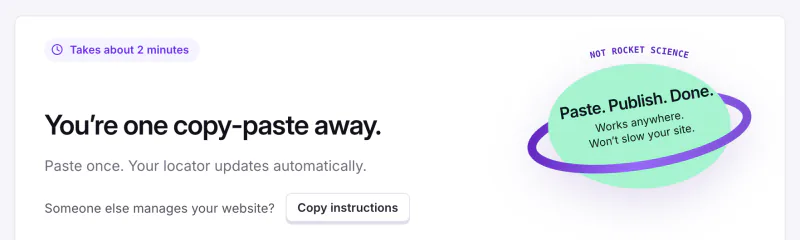
- Copy the embed code shown on your StoreRocket Install page. It already carries your account ID, so paste it exactly as copied.
Step 6: Add to Your Wix Site
In Wix Editor:
- Open your Wix Editor
- Navigate to the page where you want the store locator
- Click Add Elements (the + button) in the left sidebar
- Select Embed Code, then Embed HTML
- Open the element's code settings and choose to enter code
- Paste your StoreRocket embed code and save the change
- Resize and position the element
- Click Publish
Wix renames editor buttons from time to time. If a label differs, look for the HTML or Embed Code element in the Add panel.
In Wix Studio (new editor):
- Open Wix Studio
- Add an HTML embed element
- Paste your code
- Adjust size (a good starting point is 100% width and about 600-800px of height; preview and adjust)
- Publish
Step 7: Configure Widget Size
For best results:
- Width: 100% (full width of container)
- Height: about 600-800px on desktop is a good starting point
- Mobile: Consider using Wix's responsive settings
Step 8: Test Everything
Before going live, verify:
- ✅ Search works (zip code, city, and "use my location")
- ✅ Results appear correctly
- ✅ Tap Directions on a result and check where it goes. Wix shows the embed inside a frame, so test this on the published page
- ✅ Phone numbers in the location details are tappable on a phone
- ✅ Mobile experience is good
- ✅ Filters function properly
Wix-Specific Considerations
Handling Wix's Ajax Navigation
Some Wix sites use Ajax-based page loading. If your store locator doesn't appear when navigating from another page:
Solution 1: Link directly to the store locator page (external link)
Solution 2: Contact StoreRocket support for Wix-specific guidance
Wix Mobile Optimization
Wix handles mobile differently than desktop. Ensure:
- The HTML embed is set to "Stretch" on mobile
- Height is appropriate for mobile screens (400-500px)
- Test on actual mobile devices
- Verify "use my location" works
Wix SEO Settings
For the page containing your store locator:
- Go to Page Settings > SEO
- Set a descriptive title: "Find a Store Near You | [Your Brand]"
- Write a meta description including "store locator" and your locations
- Set a clean URL slug:
/store-locatoror/locations
Advanced Features for Wix
Lead Capture Integration
Capture visitor information:
- Turn on the lead form in its settings on the Leads page in StoreRocket (depends on the plan, see pricing)
- When a search finds no location nearby, the visitor can leave the details you ask for, such as their email, name, phone or a comment
- The lead lands in your dashboard and your team gets an email
Analytics Dashboard
Depending on the plan, StoreRocket analytics show how visitors use your locator:
- Searches over time, and the words people typed
- A map of where people searched
- Searches that found nothing nearby
- Clicks per location
- Leads (plan-dependent)
Troubleshooting Wix Embeds
Widget Not Appearing
Check:
- Embed code is complete and correct
- HTML embed element is published
- Page is not in draft mode
- Browser isn't blocking JavaScript
Fix: Try republishing your Wix site
Widget Appears Too Small
Check:
- Height setting in Wix embed
- Container element size
Fix: Set explicit height (600px minimum) in embed settings
GPS Not Working
The embed sits inside a frame, so location access can depend on Wix and the visitor's browser. Check:
- Your Wix site uses HTTPS ("use my location" needs it)
- User has granted location permission
- Mobile browser supports geolocation
Wix Store Locator Best Practices
Make It Findable
- Add "Find a Store" to main navigation
- Include in footer links
- Link from contact page
- Mention on homepage
Optimize for Conversions
- Use clear call-to-action buttons
- Show store hours prominently
- Add a phone number to each location
- Test directions on your published page
Keep Data Fresh
- Update opening hours when they change
- Add new locations promptly
- Remove closed locations immediately
- Verify information quarterly
Use Your Analytics
- Review where people searched
- Spot searches that found nothing nearby
- Watch which words people type
- Read the leads that come in
After install, you change locations in the StoreRocket dashboard and the locator on your page updates itself. StoreRocket maintains the hosted locator and delivers updates through the embed already on your site.
Frequently Asked Questions
Will the store locator work on Wix mobile?
The locator adapts from a desktop map to a phone layout. Set the Wix embed to stretch on mobile, give it enough height, and test the published page on a real phone.
Can I match the store locator to my Wix theme?
Yes. In Widget Studio you choose the locator style, set your brand color and font and change the wording, with a live preview, so the locator can follow your Wix site's look.
Get Your Wix Store Locator Live
Help your Wix visitors find your physical locations.
StoreRocket for Wix includes:
- ✅ Easy embed installation
- ✅ Google Sheets sync (plan-dependent)
- ✅ Analytics with a map of where people searched (plan-dependent)
- ✅ Lead capture forms (plan-dependent)
- ✅ A phone layout
- ✅ Brand colors, fonts and wording
Free trial, no credit card required.
Need help adding a store locator to your Wix site? Contact our team.