AI coding tools can build a working store locator now, and with a developer steering, an import, an admin screen and an analytics dashboard too. The bigger job is owning it: keeping locations right, the map provider, the phone layout and the fixes, for as long as your stores exist. That work is StoreRocket's whole job.
Store locators are the only thing StoreRocket makes, and we've been building, running and refining one since 2018. StoreRocket maintains the hosted locator and delivers updates through the embed already on your site. Your team keeps locations current from the dashboard, and maintaining the locator engine is our job.
This guide puts both paths side by side and says plainly when building your own is the better choice. It shows StoreRocket on real screens, what a good locator needs if you build it, and how to use AI and StoreRocket together. We make StoreRocket, so weigh our view with that in mind.
Related: How to add a store locator to your website | Locator map: three ways to build one | Best store locator software
The short answer
Build it with AI when
- The locator is part of your product, with logic only your systems know: live stock per store, bookings, your own delivery zones.
- Your locations already live in a database you’d rather query directly.
- A developer will own it for as long as it runs, including the unglamorous fixes.
- You need full control of the code, the hosting and every script on the page.
Use StoreRocket when
- The people who update locations aren’t developers.
- You want search, opening hours, filters and a phone layout that already work, styled from a settings screen.
- You’d rather not be on call when a map library, a browser or your list of locations changes.
- You want to see what visitors search for without building the tracking yourself.
Only a few locations and no budget? You may not need either. A free embedded map with a pin for each location is fine when the list is short, rarely changes and visitors only need to see where you are. Our guide to free store locator options compares them, and the free Google Maps embed generator makes the code for a map with several pins.
What an AI-built locator can do
A capable AI tool, with someone reviewing its work, can produce every visible part of a store locator: pins from your spreadsheet, address search through Google or Mapbox, results sorted by distance, filters, a details panel and a simple admin page behind a login. None of that is out of reach anymore, and for a team with a developer it can be a good result.
AI can help with the work after launch too, but someone still has to own it. A store locator isn't a one-off project: someone manages and maintains it for as long as your stores exist. They keep addresses right as stores open and close, keep the map provider's key restricted and paid, test the phone layout after each change and fix whatever breaks. That's where the comparison below spends its time.
Who owns what after launch
Analytics, search by location name, custom map styles, location photos, Google Sheets sync and the REST API depend on your plan. Compare plans.
Both columns usually need a map provider account once you're live, so that isn't the difference. The difference is how much of the rest you want to own. If the answer is as little as possible, create your locator and try the StoreRocket column with your own locations.
Problems a locator only meets on real websites
A locator on a blank test page rarely misbehaves. On real websites, with real themes, scripts and visitors, problems like these come up. Each one is fixable once someone notices it. StoreRocket's locator already handles these, and our fixes reach your site through the embed that's already on it.
- Visitors who won't share their location. A locator built only for a yes can get stuck when a visitor says no. StoreRocket's falls back to the visitor's approximate area, or a clear message, and search keeps working.
- Typos and towns that share a name. Someone types "Denvr", or a Springfield that exists in several states. StoreRocket's suggestions still find Denver, and show the state and country under each place.
- Opening hours in other time zones. A locator that checks hours against the visitor's clock gets "open now" wrong for shops elsewhere. StoreRocket works out open or closed in each location's own time zone. At 11:30 PM in New York, an Anchorage shop that's open until 11 still shows as open, because it's 7:30 PM there.
- Scripts that load late. Tag managers and some site builders add code after the page has finished loading. A locator that waits for the page's load event never starts. StoreRocket's starts whenever its code arrives.
- Sticky headers and banners. StoreRocket keeps the locator's layers to itself, so its map controls and pop-ups can't climb above your site's sticky header or cookie banner.
The StoreRocket route on real screens
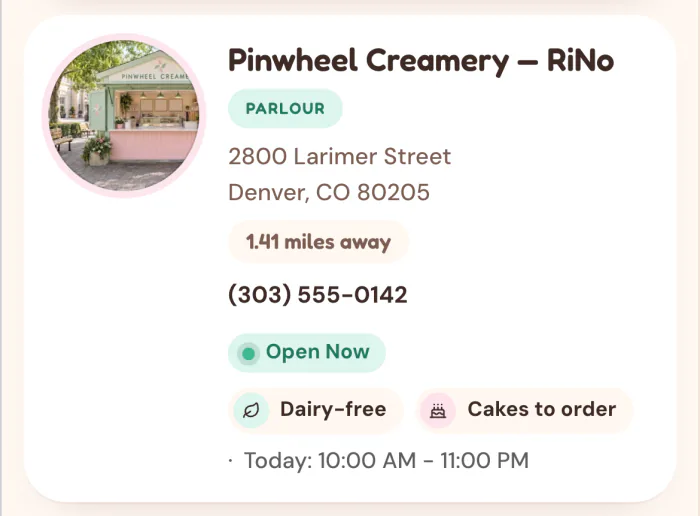
Here's one change from start to finish on an example account. Pinwheel Creamery is a made-up ice cream chain we use for demos, and every screen below is the real product.
1. Import the locations you've confirmed
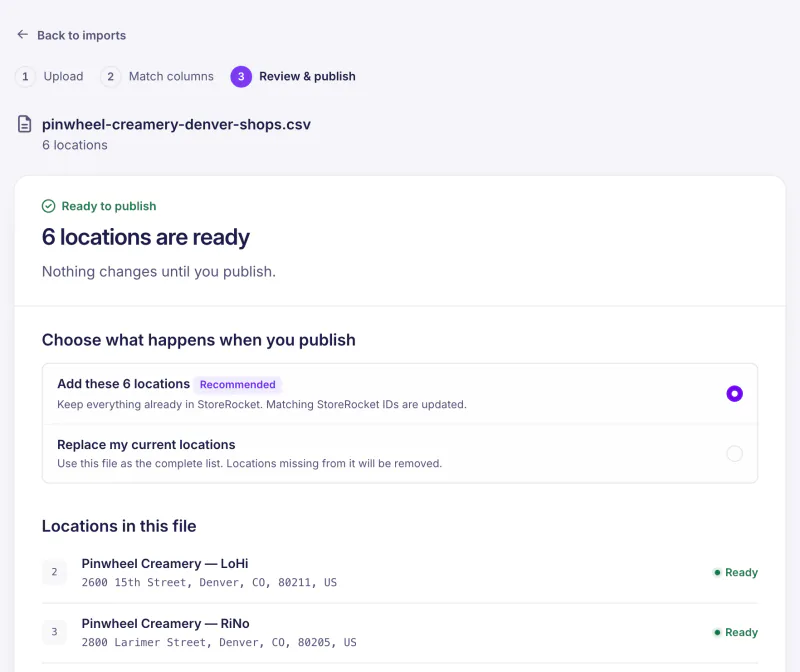
The chain is opening six shops in Denver. Someone exports the list from wherever it lives, a spreadsheet or another system, and drops the file on the import page. StoreRocket matches the columns, checks every row and lists what will change. Nothing reaches the live map until someone presses publish.
2. Make it look like your website
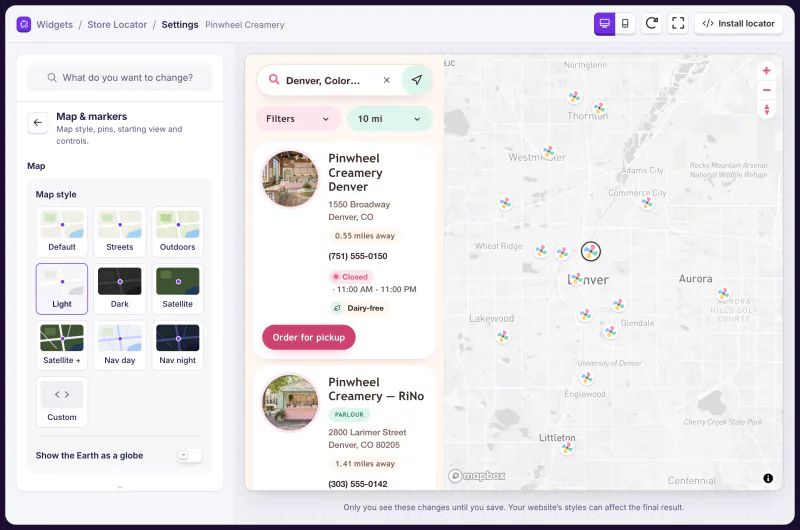
The Widget Studio holds the locator's settings, each with a live preview: style, colours, fonts, pins, map style, what each location shows and how search works. Pinwheel's pastel cards and pinwheel pins come from these settings plus the account's own CSS.
3. Visitors search on their phone
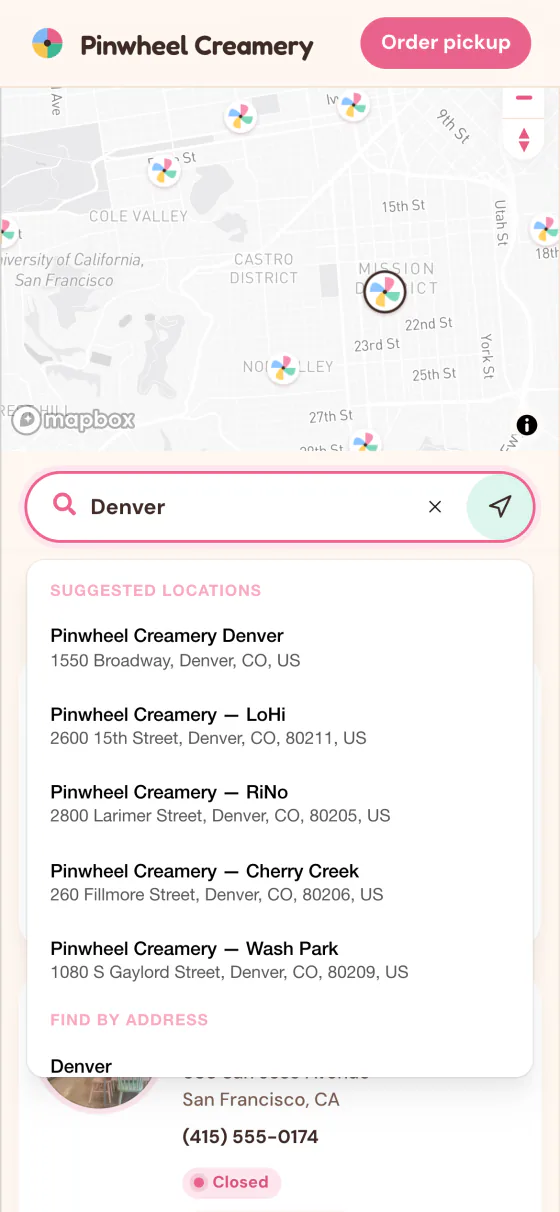
A visitor types a city or a postcode and gets suggestions as they type, then the nearest shops with their distance and whatever the account shows on each card: opening hours, filters, its own buttons.
4. Change a location once
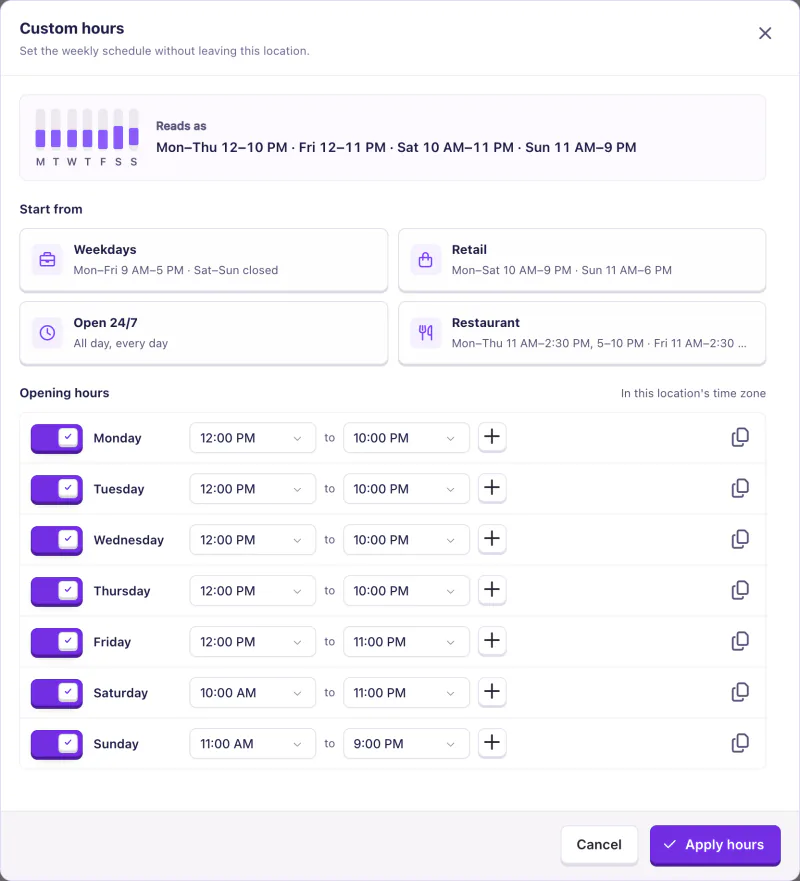
The RiNo shop starts opening at 10 on Saturdays. Someone on the team opens the location, edits its hours and saves. The editor reads the week back in plain words, and the hours stay in the shop's own time zone.
5. The visitor sees the change
There's no code to paste again and nothing to deploy. A visitor checking after 10 on a Saturday sees RiNo open, while the Denver shops that still open at 11 show as closed until then.
Want to run the same steps with your own locations?
How to build a store locator with AI
If you're building your own, this order works: settle who will own it, know the parts, then test it the way visitors will use it.
Settle who will own it
Answer these before the first prompt. If the answers come easily, building may well be right for you.
- Who updates the locations, and will they need a developer to do it?
- What happens when an address can't be found, or lands in the wrong place?
- Who holds the map provider key, watches its usage and keeps it restricted?
- Who tests search on a phone after each change?
- How will you see what people search for and which locations they open?
- Who fixes it when a browser or map library update breaks something?
- If the person who built it leaves, who can change it?
The parts a store locator needs
- Location data. One row per location: name, address, phone, website, opening hours, time zone and the tags visitors will filter by. Keep it where the people who update it can reach it.
- Geocoding. Turn each address into map coordinates when it's added, and catch the ones that can't be found or land in the wrong town.
- A map and its key. Google Maps, Mapbox or an open-source option such as MapLibre. Restrict the key to your website and keep an eye on its usage and billing.
- Visitor search. Address, city and postcode with suggestions as people type, a use-my-location button, results sorted by distance and a clear answer when nothing is nearby.
- Results people can act on. A list and a map that stay in sync, pins that group when they overlap, today's hours with open or closed in the location's own time zone, a number to tap and directions.
- A phone layout. Search, results and the map all usable on a small screen, with buttons big enough to tap.
- Access for everyone. Every control usable with a keyboard and labelled for screen readers.
- A way to update it. A screen or a spreadsheet the right people can edit, with a check before changes go live.
- Measurement. Events for searches and clicks, so you can see what people look for and where they find nothing.
Test it the way visitors use it
Review what your AI tool writes the way you'd review a developer's work. Then put the locator on its real page, with your theme, header and other scripts, not on a blank test page, and run these checks on a real phone:
- Type a town with a typo, such as "Denvr". The suggestions should still find it.
- Type a name several places share, such as Springfield. Each suggestion should show its state or country.
- Search by postcode. The nearest locations should come first, with their distance.
- Tap "use my location" and refuse. You should still get results or a clear message, and search should keep working.
- Search where you have no locations. You should see a clear message, not an empty map that looks broken.
- Check "open now" late in the evening, for a location in another time zone. Each location should follow its own local time.
- Open a location and tap its phone number and directions, on an iPhone and on an Android phone. The dialler and a map should open.
- Edit a location, then reload the live page. The change should show without anyone deploying code.
These checks work on any store locator, StoreRocket included. Run them on your own locations during the free trial.
Use AI and StoreRocket together
You don't have to pick one approach for your whole website. If you build your site with an AI website builder or a coding assistant, it pairs well with a maintained locator: the AI builds the pages, and StoreRocket runs the store finder inside one of them.
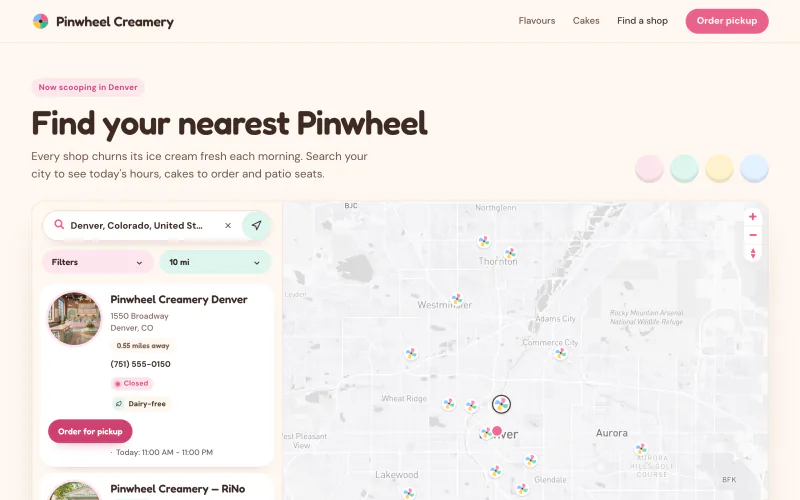
Here's how the two fit together:
- Create your locator and add your locations.
- On the Install page, press Copy instructions. You get your embed code with short steps for whoever builds the page.
- Paste that into your AI tool, or send it to your developer. Ask for the code to go where the locator should appear, unchanged.
- Publish, open the live page and search for a city to check that the locator loads.
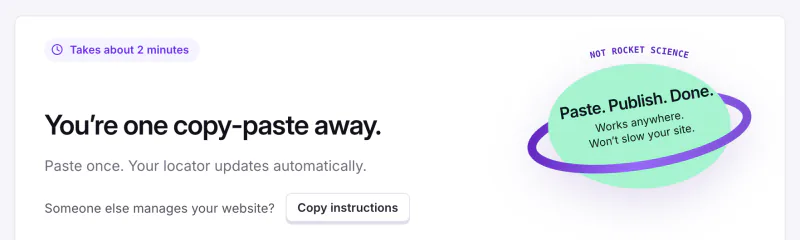
Your AI tool can change anything around the locator. When you edit a location later, the live page shows it without anyone touching the website again. For platform-specific steps, see how to add a store locator to your website.
Frequently asked questions
Is building a store locator with AI cheaper than StoreRocket?
It depends on what you count. The code can be quick to produce, but hosting, map provider usage, testing, upkeep and someone to fix problems carry on for as long as the locator runs. Set that against StoreRocket's plans, which start with a free trial.
Can AI build a store locator?
Yes. AI coding tools can build a working locator, including search, filters and an admin screen. Whether it's a good idea depends on who maintains it afterwards: location updates, the map provider key, testing on phones and fixes.
How do I build a store locator with AI?
Start with clean location data and a map provider key. Then ask your AI coding tool for each part: search with suggestions, a use-my-location button with a fallback, results sorted by distance, a list and a map in sync, opening hours in each location's time zone and a phone layout. Review the code it writes, then test it on real phones before launch. The parts and the checks above cover each step.
Do you need to code to build a store locator with AI?
Not for a first version: an AI tool can write the code from a plain-language brief. Running one your customers rely on is different. Someone has to read and test the code, keep the map key restricted, update the data and fix it when a browser or map library changes. Plan for that person before you start.
Is there a free way to add a store locator?
Yes, for a short list that rarely changes. A free embedded map, such as Google My Maps, can show a pin for each location, and viewers can search the map's contents. It won't find the nearest location from a visitor's postcode, and it doesn't tell you what people searched for. Our guide to free store locator options compares the choices.
Can I use StoreRocket on a website built with AI?
Yes. The locator is a standard embed, so it goes on any page that accepts an HTML or embed block, including pages an AI tool generated. Editing your locations later doesn't touch the website's code.
Do I need my own Google Maps or Mapbox key?
During the free trial, StoreRocket supplies the map. After you subscribe, you connect your own Google Maps or Mapbox key and pay that provider directly. A locator you build yourself usually needs one too.